Guardian setup, passthrough transitions, desk awareness, and boundary visualization.
Galaxy XR World Sensing
An environmental setup system defining how Galaxy XR understands physical space, manages safety boundaries, and transitions between passthrough and immersion.
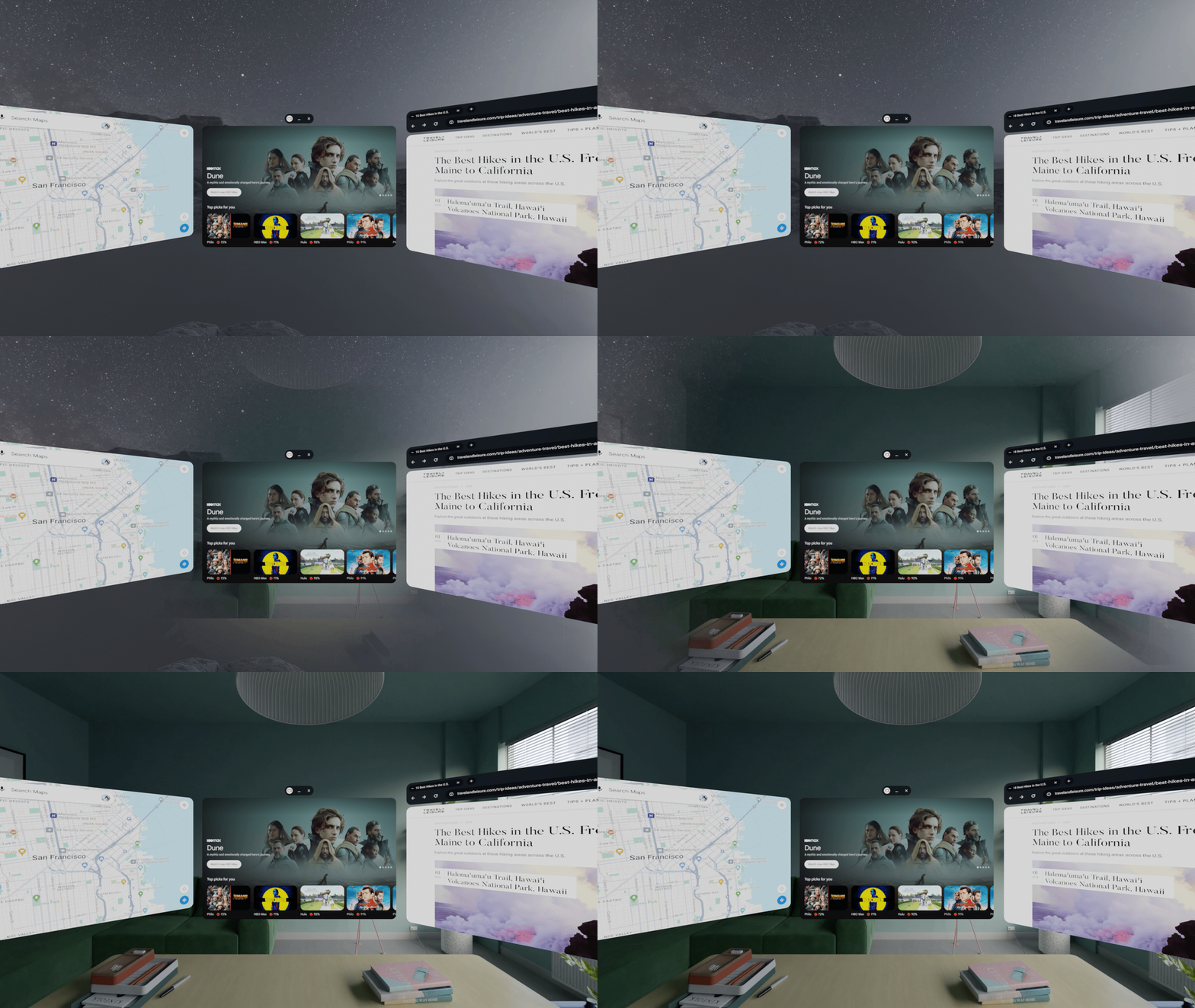
In XR, the system is responsible for maintaining awareness of the physical world.
World Sensing defines how Galaxy XR detects boundaries, understands environmental context, manages passthrough transitions, and preserves safe interaction across immersive experiences.
The system spans guardian setup, boundary visualization, environmental transitions, desk awareness, passthrough windows, and spatial re-entry behaviors.
Cross-departmental influence on guardian setup UX, passthrough behaviors, and desk-area sensing in Samsung Galaxy XR.
Interaction models, transition system, visual behavior definitions, and interactive prototype. 2 Patents filed in 2025.
"Safety in XR is the boundary between physical and virtual space."
Problem
Existing XR guardian systems were initially designed for stationary VR. They relied on manually drawn boundaries, opaque passthrough, and rigid warning systems that failed to support fluid movement between physical and virtual space.
- No persistent room understanding — boundaries were recreated every session.
- Low-fidelity passthrough reduced spatial awareness during setup.
- Boundary warnings lacked contextual guidance or environmental meaning.
- Guardian UI relied on technical terminology and text-heavy instructions.
- Cage-like boundary walls reinforced confinement rather than confidence.
- No desk awareness or localized passthrough interaction.
Mixed reality required boundaries to become adaptive environmental guidance rather than static exclusion zones.
The Guardian System
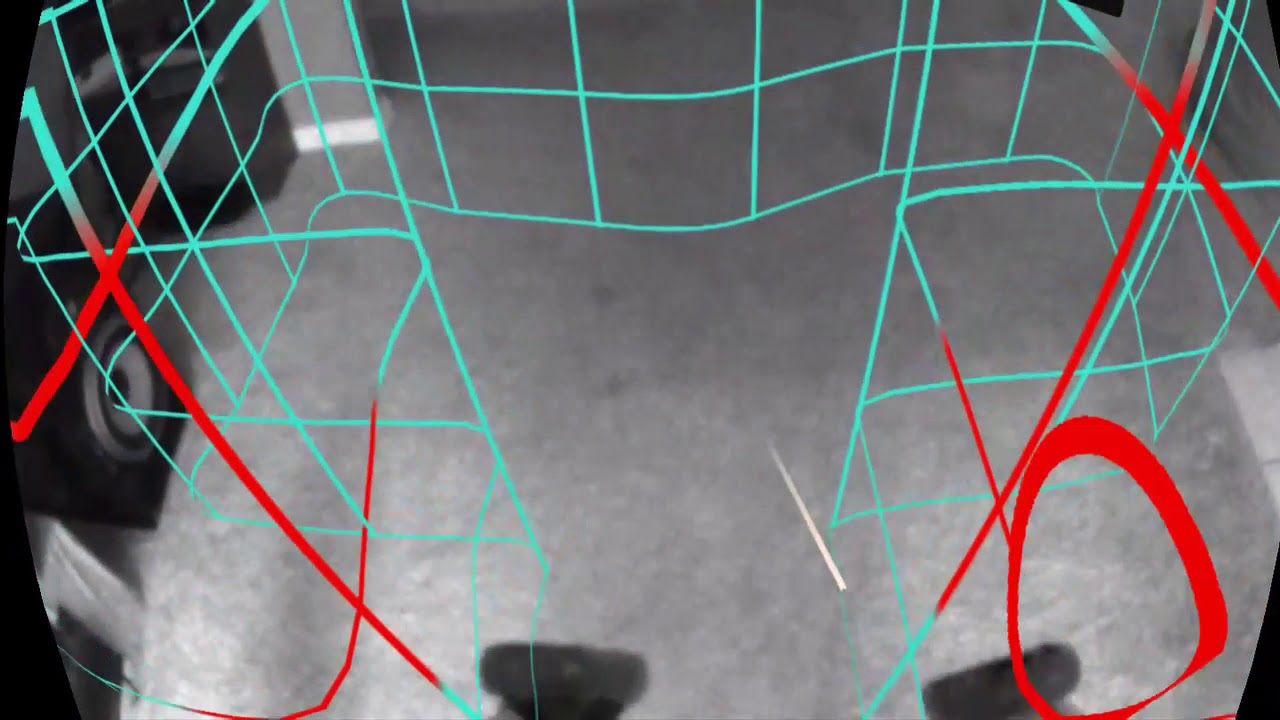
Guardian is a dual-layer safety system: a room boundary that defines the outer limit of safe movement, and a passthrough fallback that activates automatically when the user crosses it. The boundary ring — a soft, glowing ring on the floor — replaces the legacy cage visualization. The floor grid uses feathered edges and dot-matrix texture, anchored to the physical floor via automatic plane detection.
Stationary
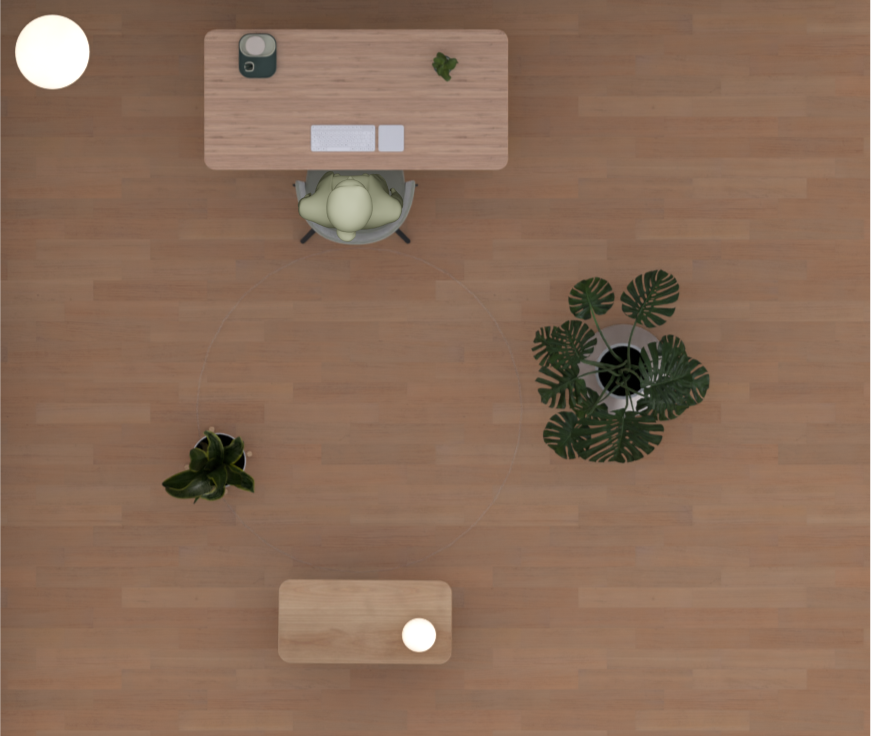
Small Boundary — 3 m diameter
Default for stationary VR experiences. 1.5 m radius gives users enough freedom of movement without risking contact with objects. Set as the system default; no setup required for seated or stationary tasks.
Room Scale
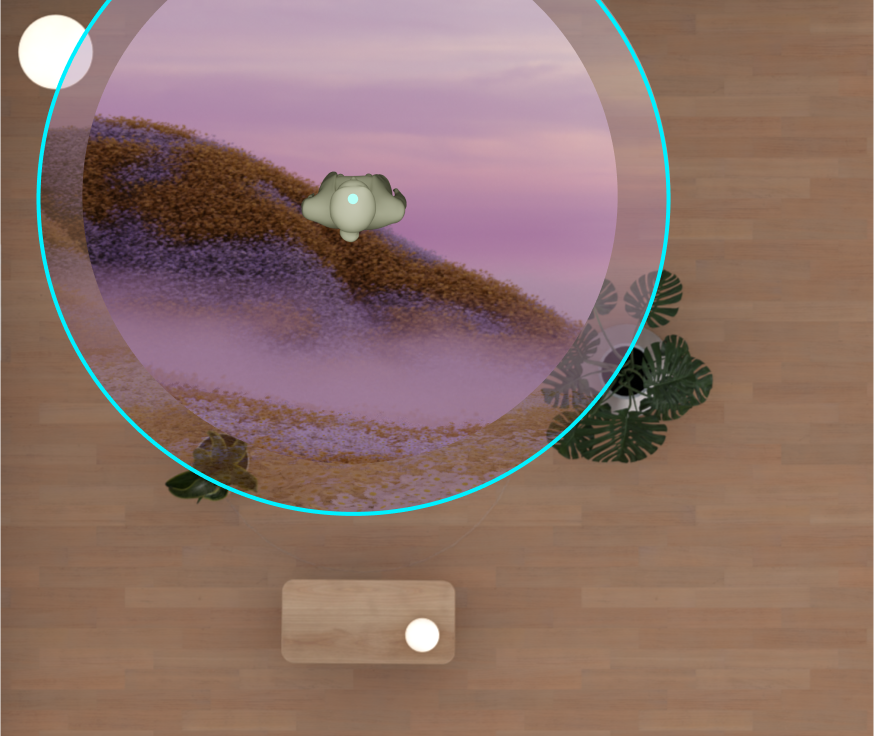
Large Boundary — 4 m diameter
For immersive experiences that require physical movement. Apps that need a large boundary prompt the user to update from small. The system holds the size setting persistently so subsequent room-scale apps don't re-prompt.
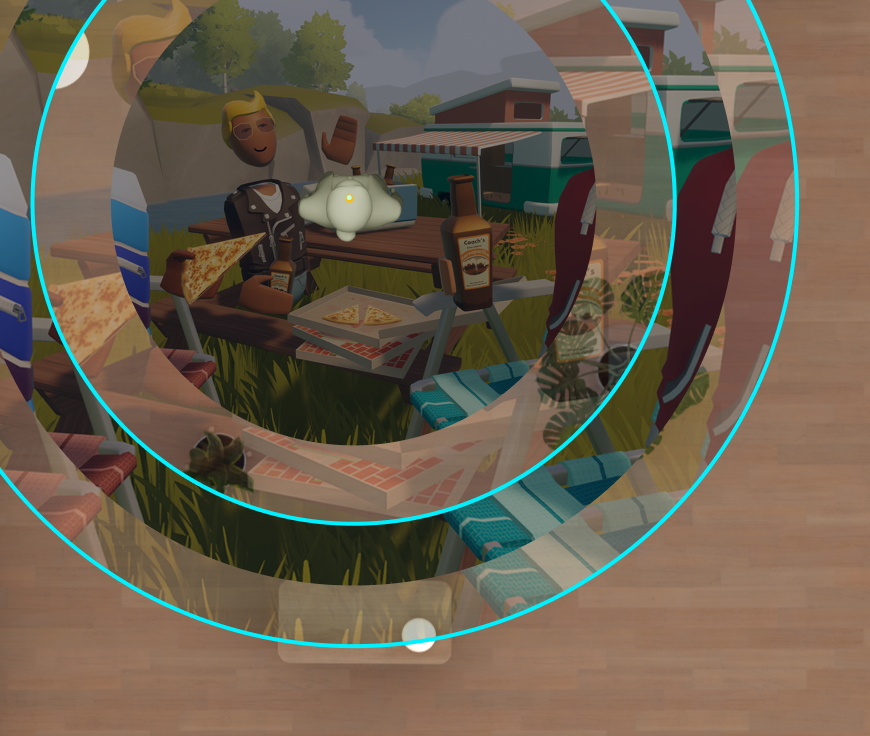
Passthrough
No Boundary — PT Mode
There is no boundary in passthrough. When the physical world is visible, users can move freely with no interruption. The boundary system is suspended entirely — no ring, no floor grid, no zone warnings. Safety is the physical world itself.
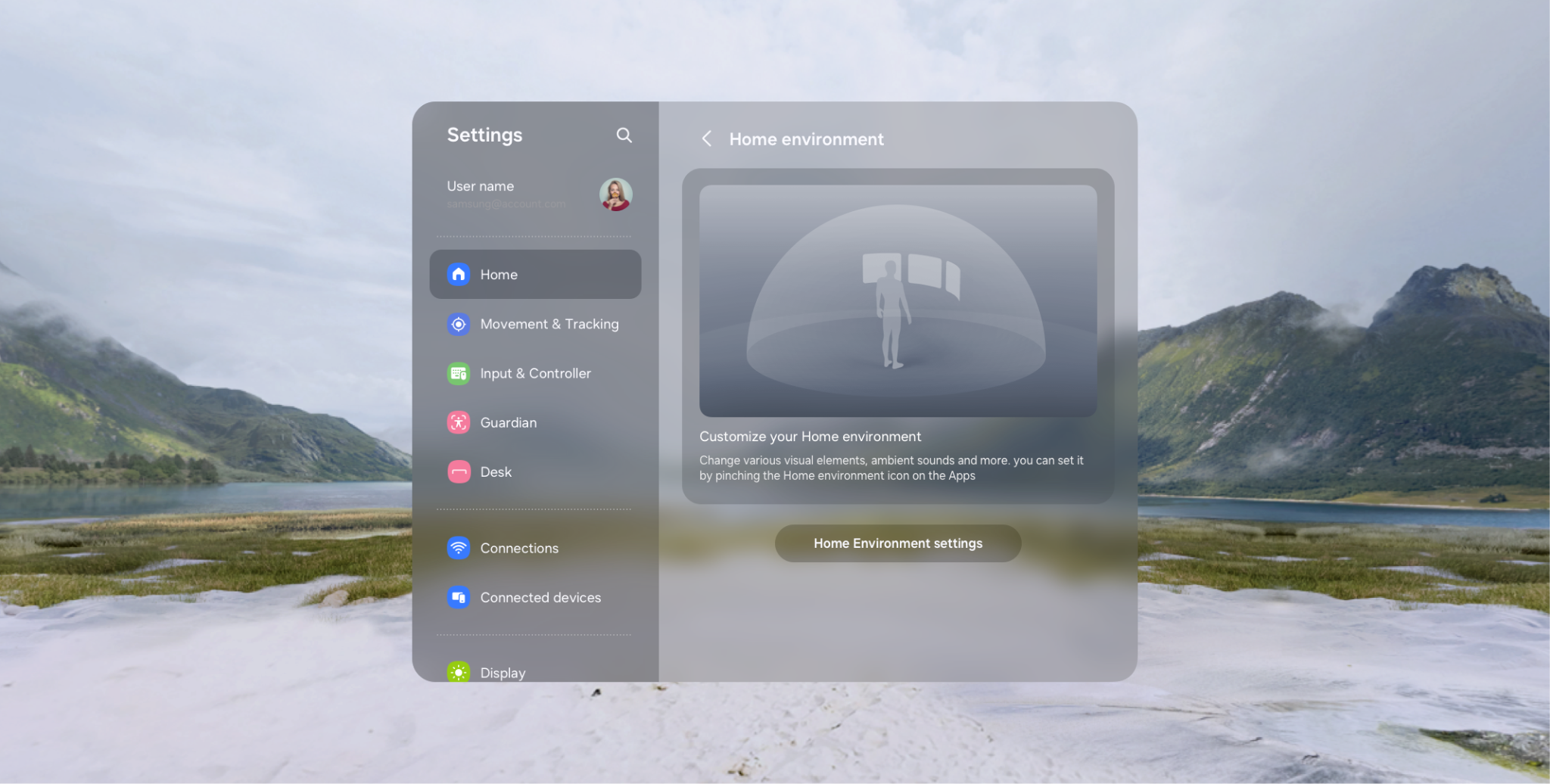
Setup
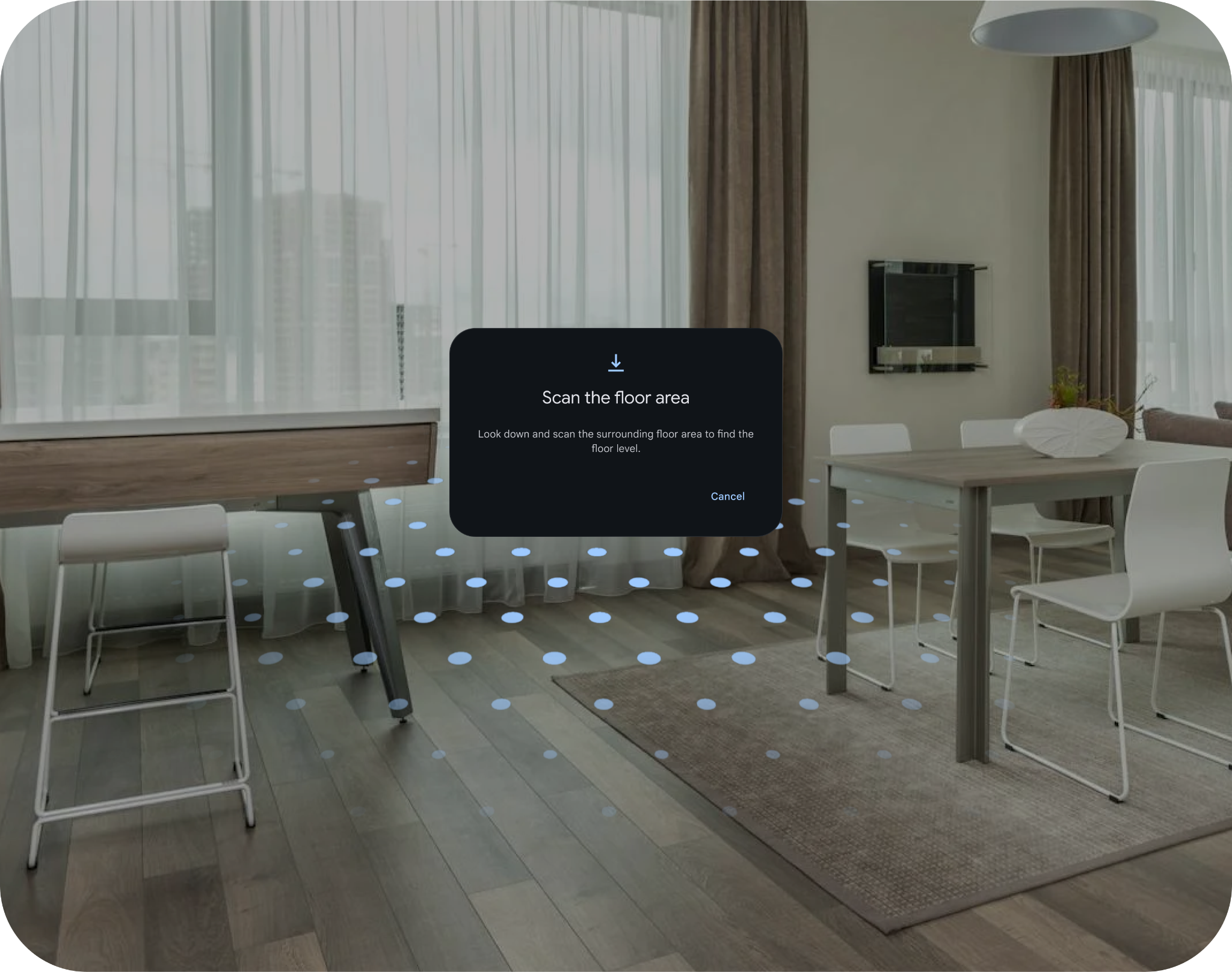
Auto Floor Detection
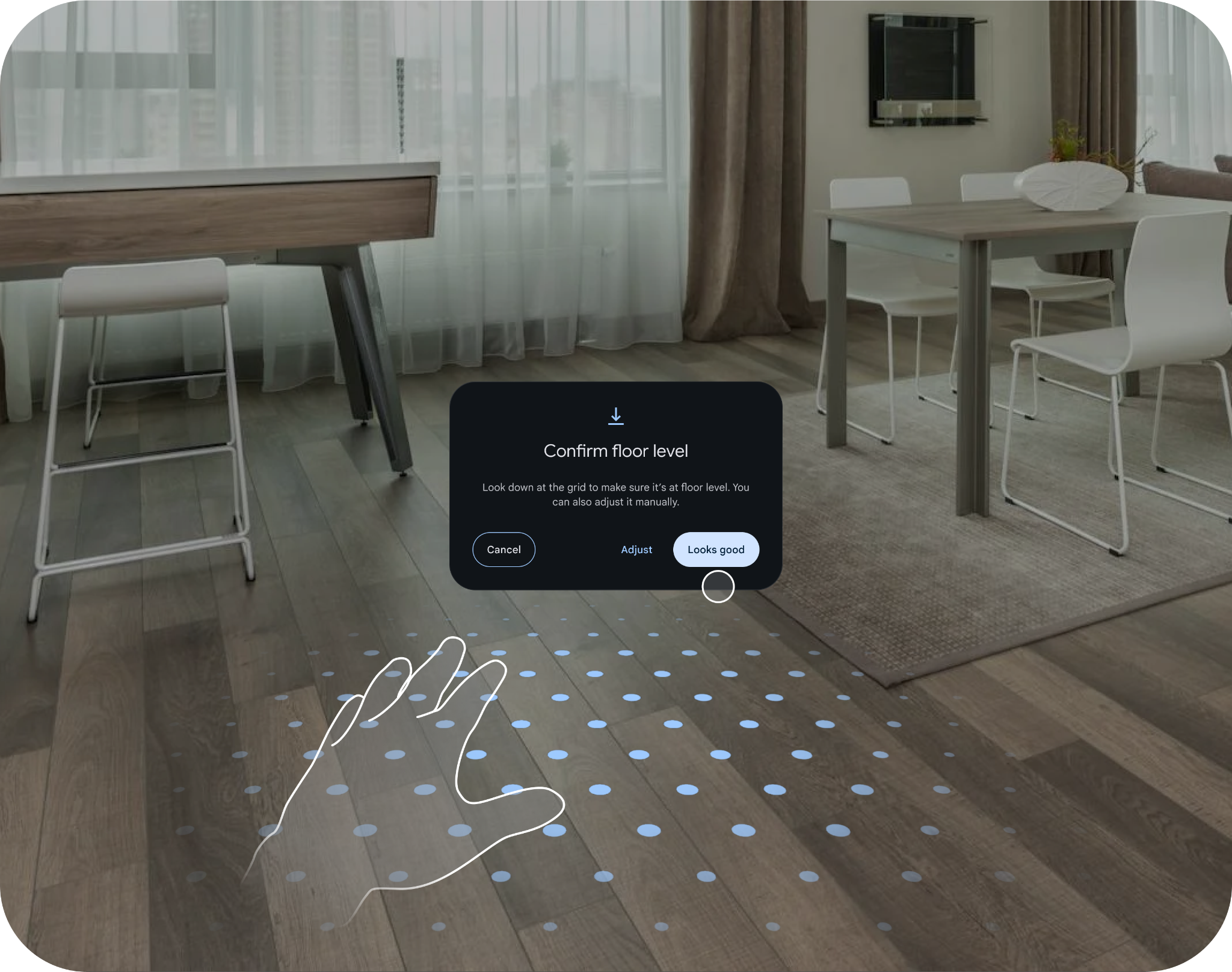
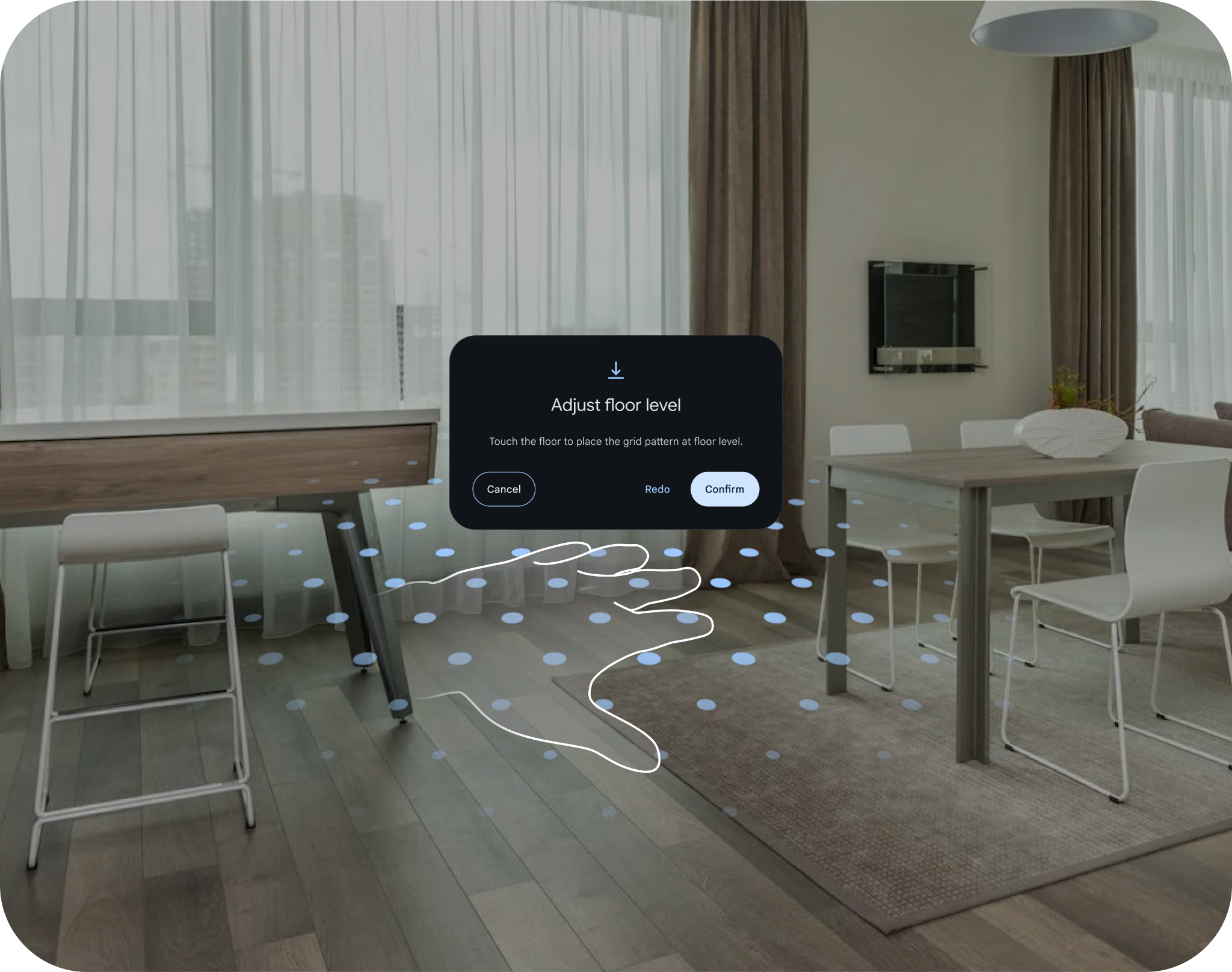
The system automatically detects floor level — no need to crouch or tap a controller on the ground. If the auto-placed grid isn't aligned, users can touch the physical floor with their hand or controller to refine it.
Floor Level Setup Flow
The floor level setup is a three-step flow: auto-detection, confirmation, and optional manual touch placement. It advances if plane detection finds the floor or times out after 7 seconds — neither blocking progress on failure nor requiring user expertise to continue.
Passthrough & Environment Transitions
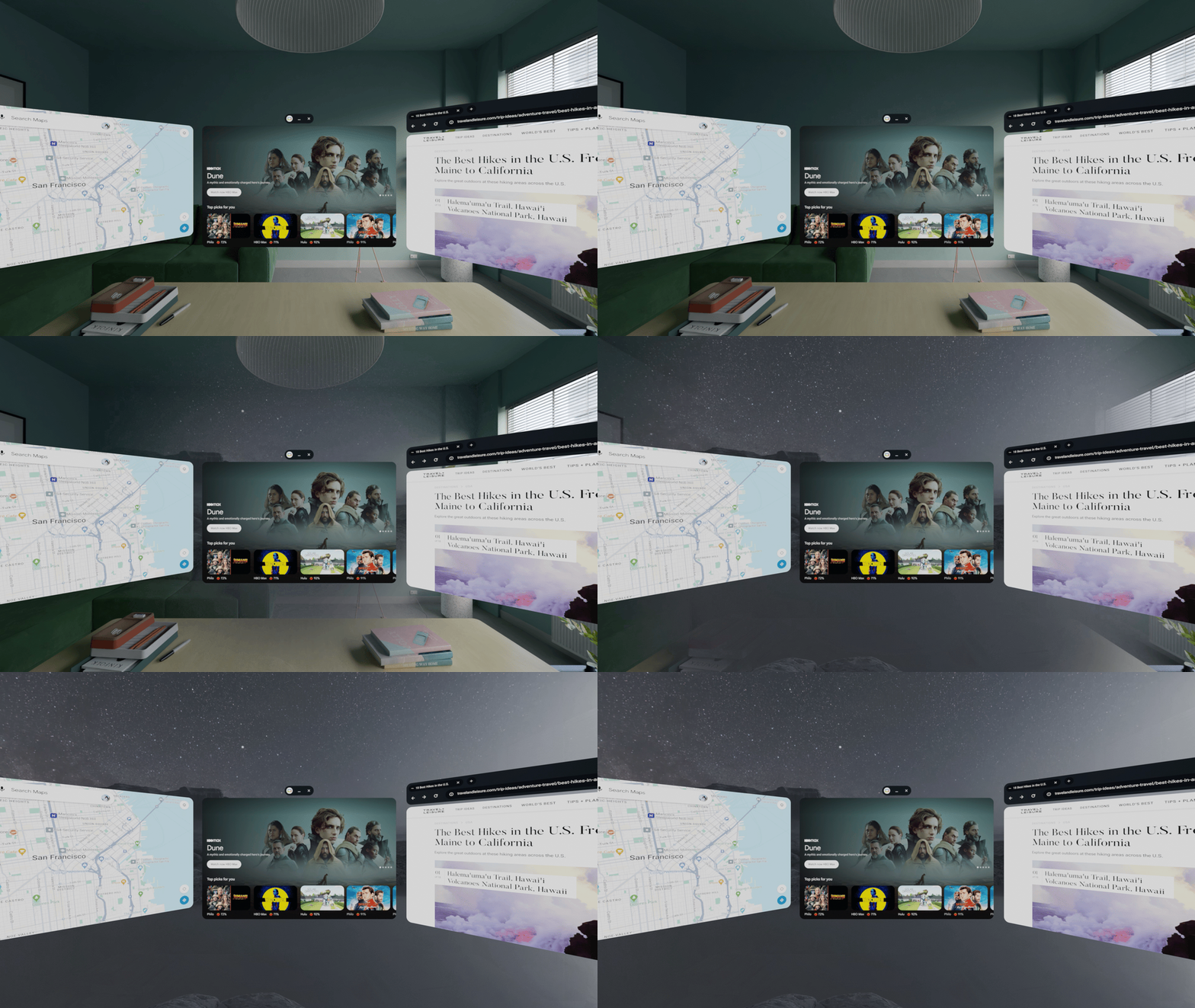
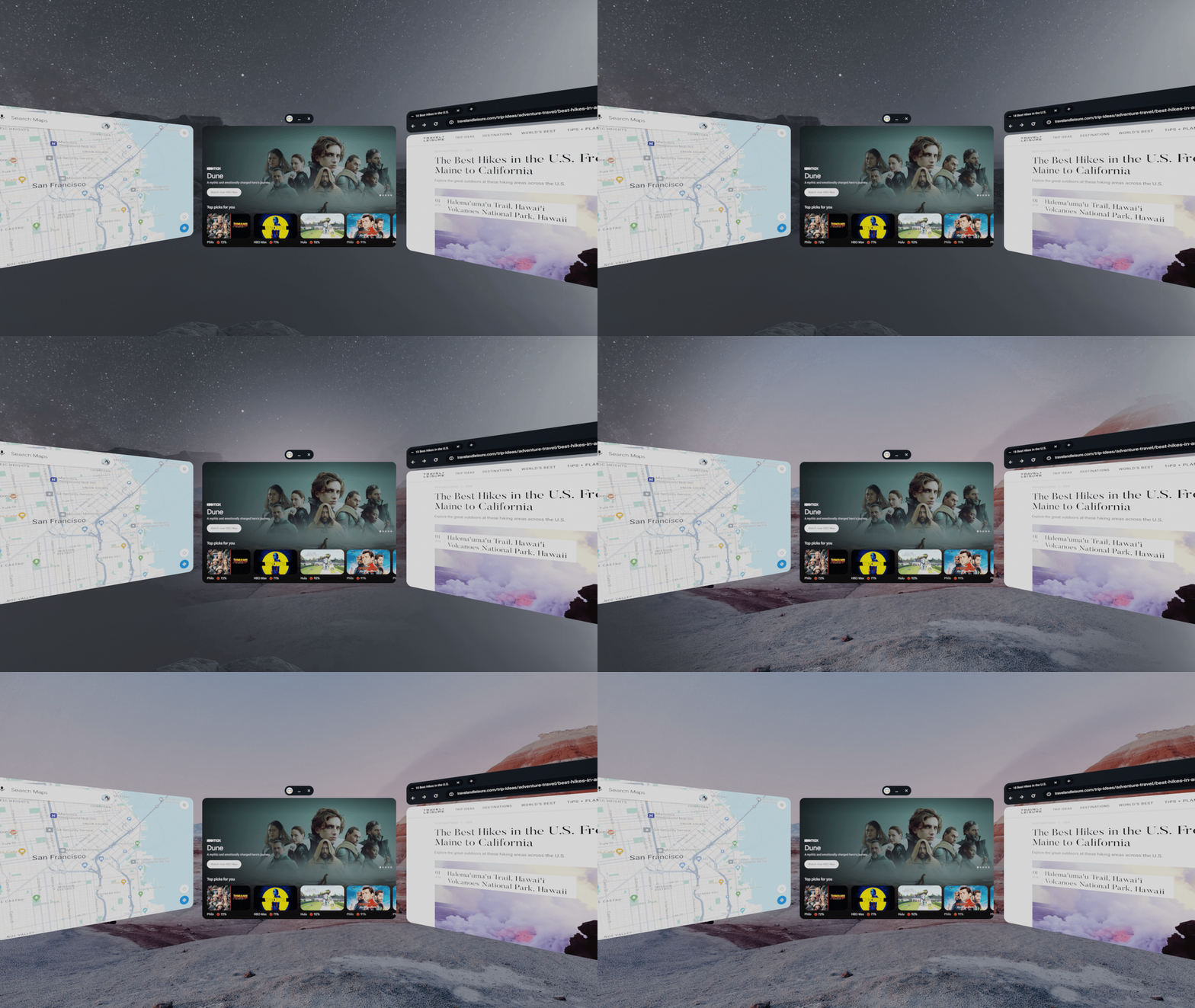
At launch, environments fade through black — a safe, legible transition that avoids motion sickness by eliminating rapid visual field changes. Post-launch, direct environment-to-environment transitions use a radial swipe that originates from the center of the field of view, matching the eye's natural expansion of attention. Three flows cover the full transition space: passthrough to VR, VR to passthrough, and VR to VR wallpaper swap.
Partial Passthrough — the Boundary Zone
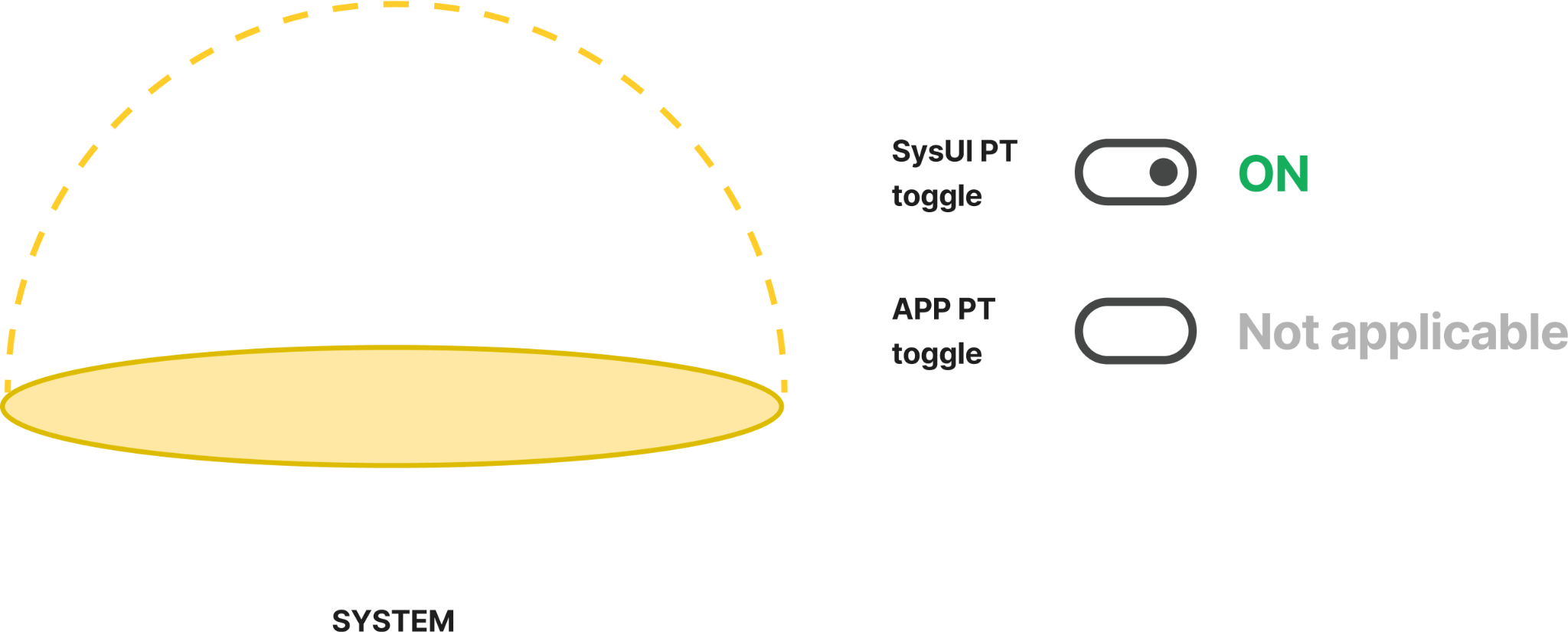
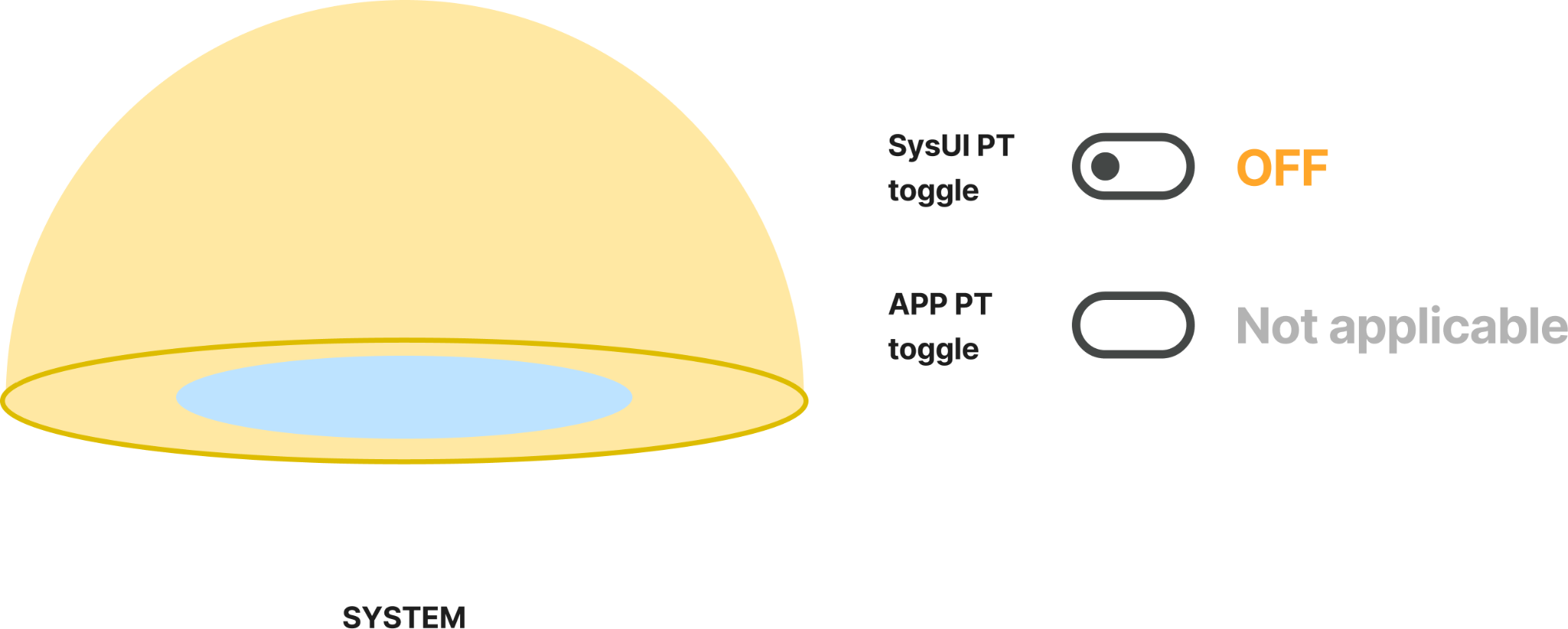
As a user moves toward the edge of their VR boundary, the virtual experience doesn't cut abruptly to passthrough — it fades. This partial passthrough zone is a continuous transition: the further into the boundary zone the user travels, the more the VR environment fades out and the physical room becomes visible. No additional boundary wall styling is applied — the opacity gradient is the entire signal.
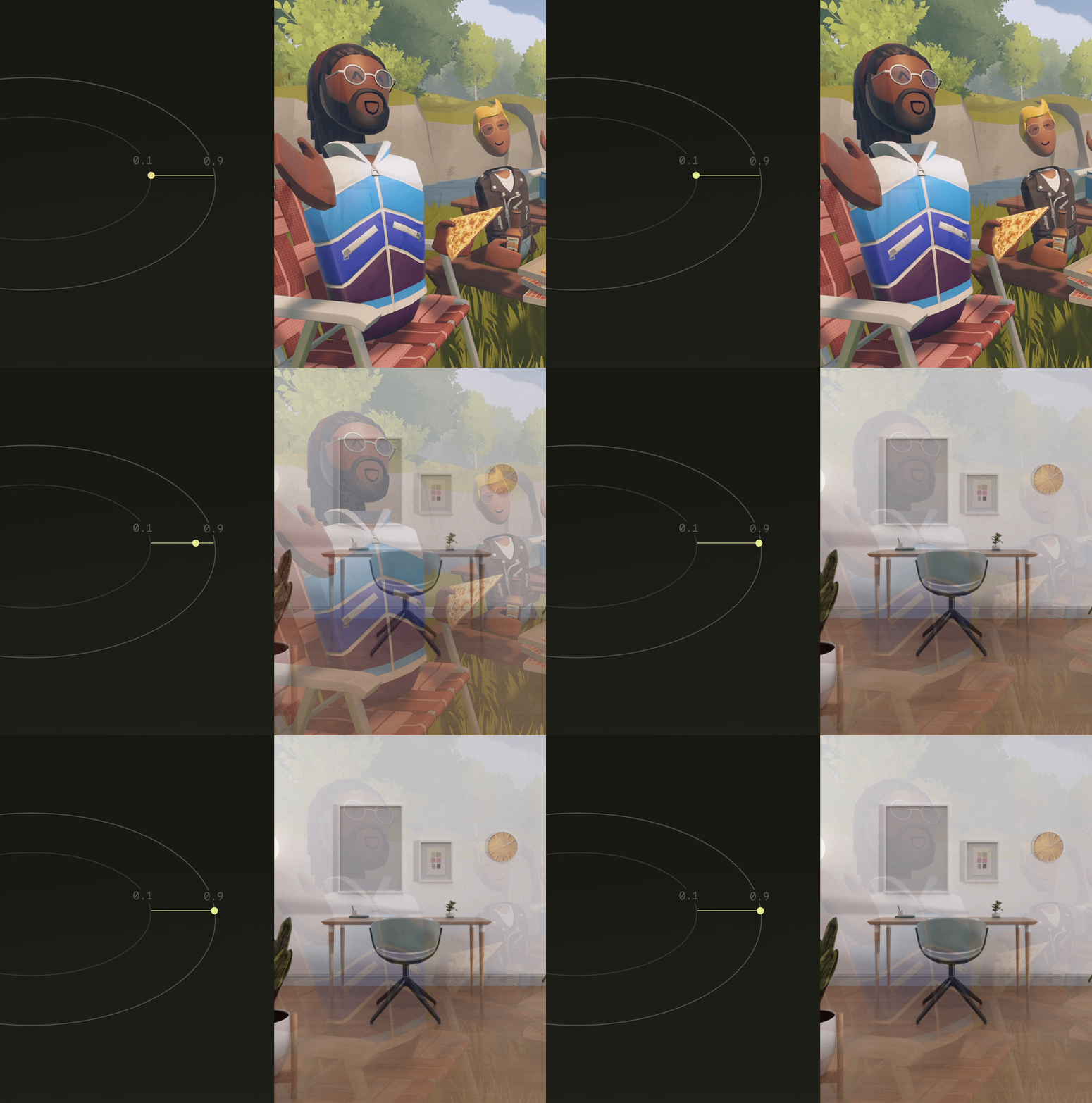
Partial passthrough zone: opacity modulates continuously as the user approaches the boundary edge — no hard cut, no cage wall.
Environments & Boundary State Logic
The interaction between environment state, boundary, and immersion follows a strict rule matrix. Home Space environments respond to boundary position; Full Space apps inherit or override the system environment. Stepping outside the boundary in VR always triggers passthrough — regardless of which environment is active — while preserving the underlying environment state.
3 m
Small boundary diameter
Default for stationary VR
Default for stationary VR
4 m
Large boundary diameter
Required for room-scale VR apps
Required for room-scale VR apps
7 s
Floor detection timeout
Flow advances regardless of result
Flow advances regardless of result
50%
VR opacity during safety confirmation
Passthrough at 50% overlay during dialogs
Passthrough at 50% overlay during dialogs
Guardian Setup Flows
Guardian entry points were rationalized from twelve distinct scenarios into three user flow groups. Every entry into guardian setup — OOBE, new area, handoff to another user, returning to the same location with obstacles — maps to one of these three flows. The system does the classification automatically; the user never chooses.
Flow A
Enter a new area for VR
Triggered on OOBE, first use, spatial handoff, or when the system doesn't recognize the current location. Runs full room scanning + floor detection + boundary creation.
Flow B
Manual boundary setup
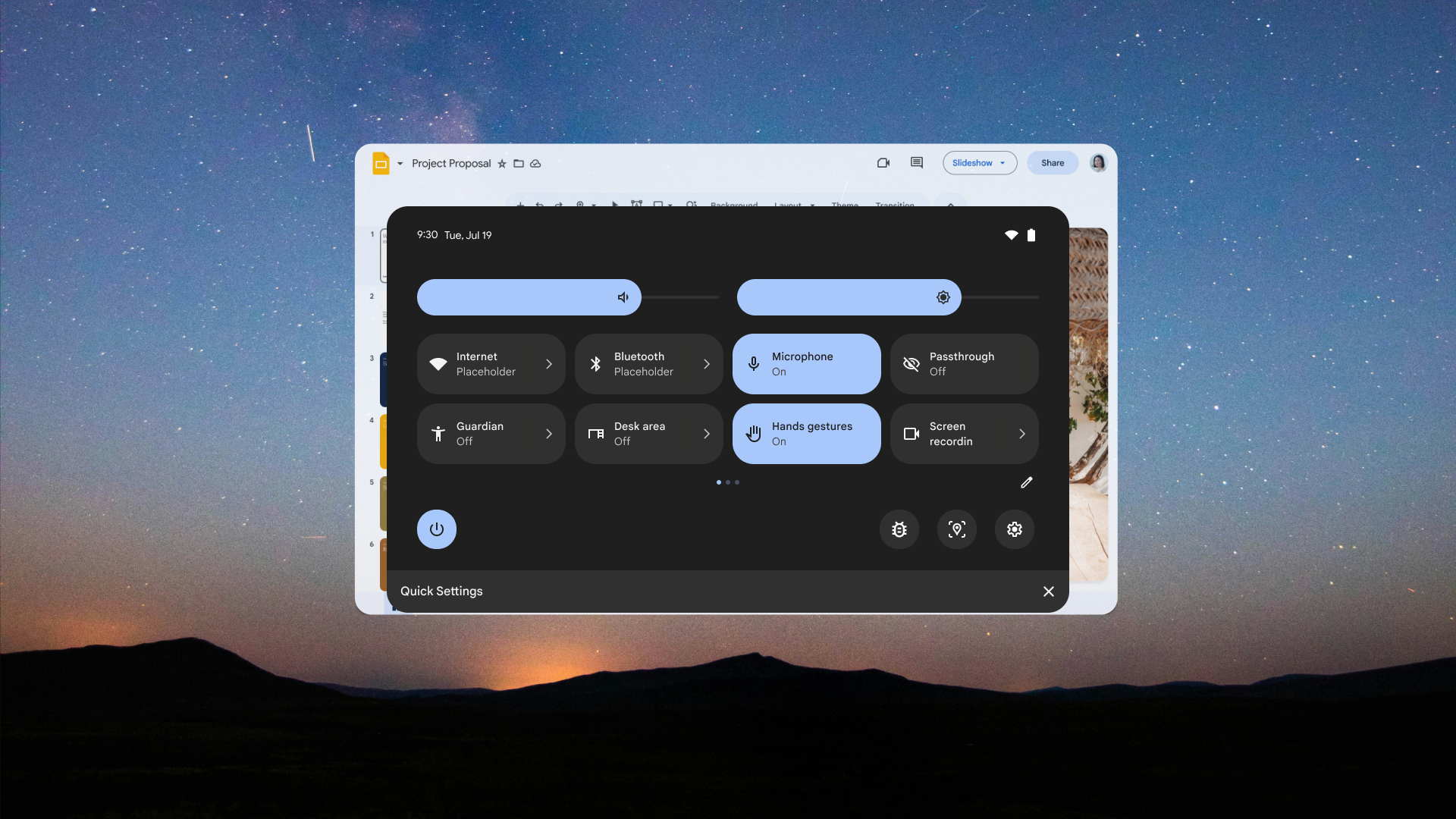
User-initiated from Quick Settings or Full Settings. Places the user in passthrough, allows manual boundary redraw, obstacle avoidance, and boundary size adjustment.
Flow C
Re-entry with new obstacles
User returns to a known location, but obstacles have changed. System flags the conflict and gives the user the option to modify their existing boundary or redraw.
Outside Boundary Behavior
When a user steps outside their VR boundary, they don't lose access to their experience — they enter a passthrough pause state. All SysUI surfaces remain accessible. 3D objects and app panels are hidden, but the underlying apps continue running. Upon return, every panel reappears at the exact position it was in before the user stepped out.
- Step out: Passthrough activates. SysUI (including gesture nav) becomes accessible. App content not visible — but apps keep running.
- Return: All app panels reappear at their exact prior positions — no re-layout, no re-launch.
- Recenter outside boundary: The boundary recenters around the user's current position. This is the only case where the boundary moves.
- Outside boundary dialog: The system offers three choices: create a new boundary (recenter), return to the existing boundary, or continue in passthrough. If the user tries to exit PT via the hardware button while outside the boundary, the action is blocked.
Desk Setup
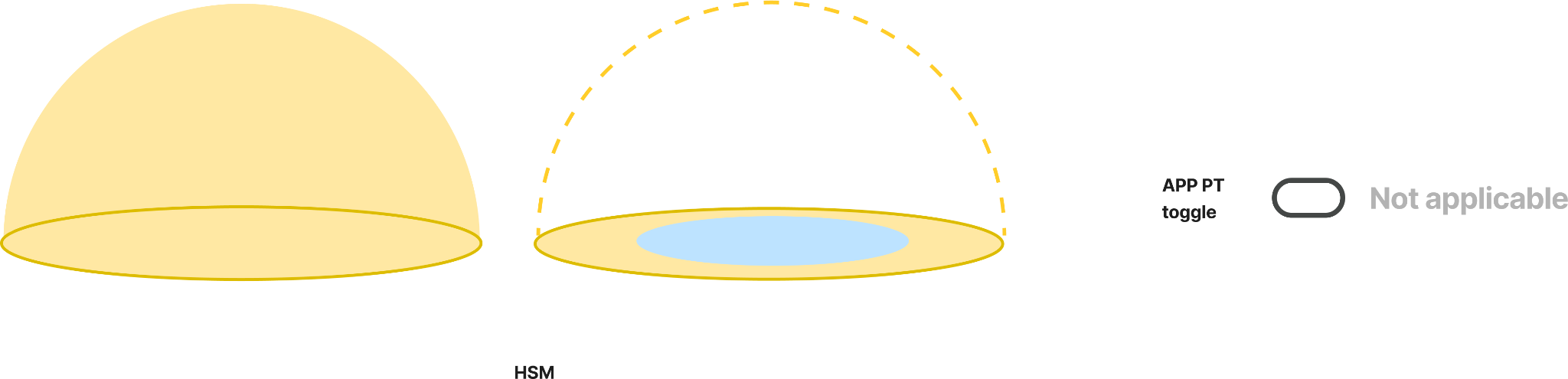
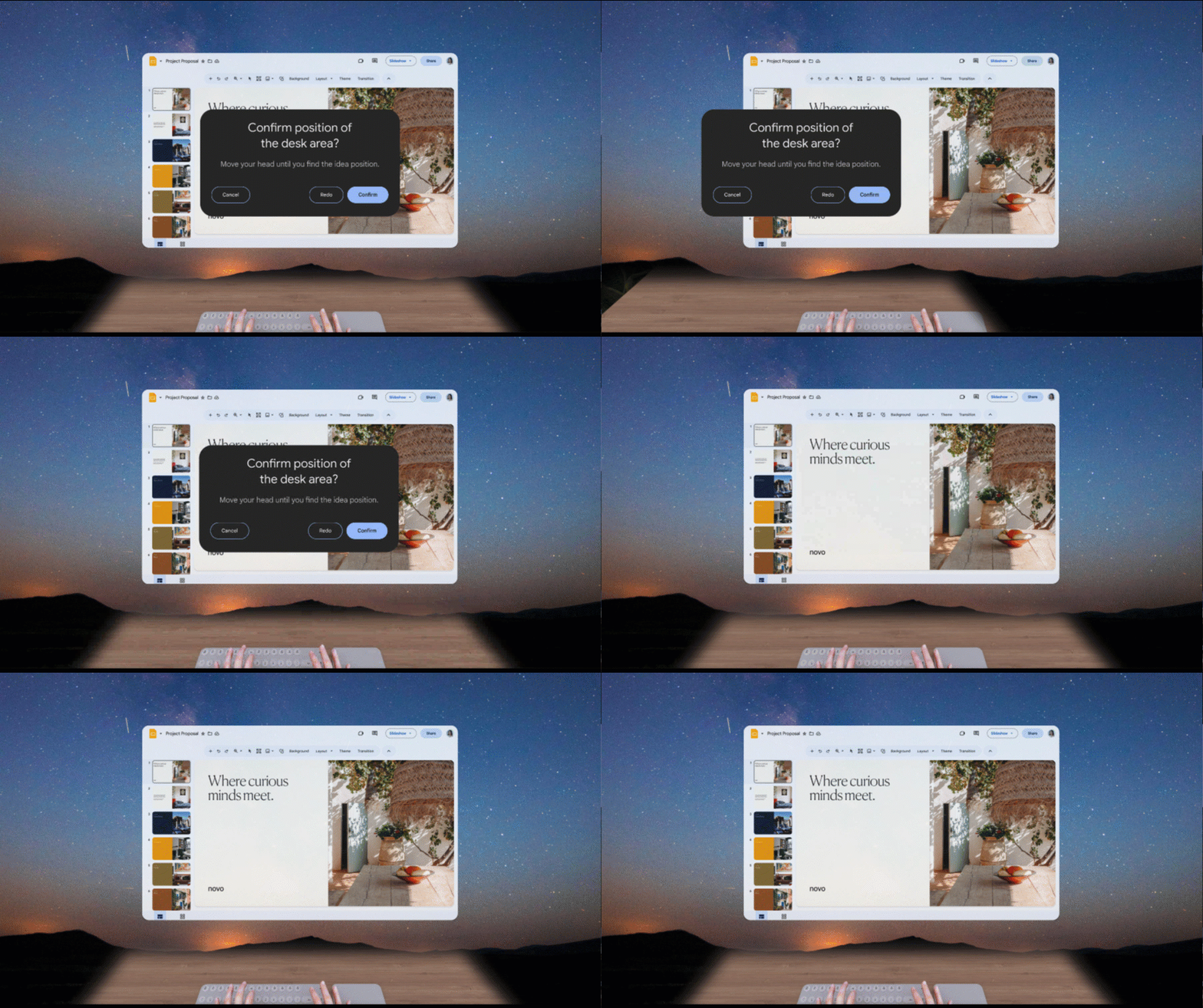
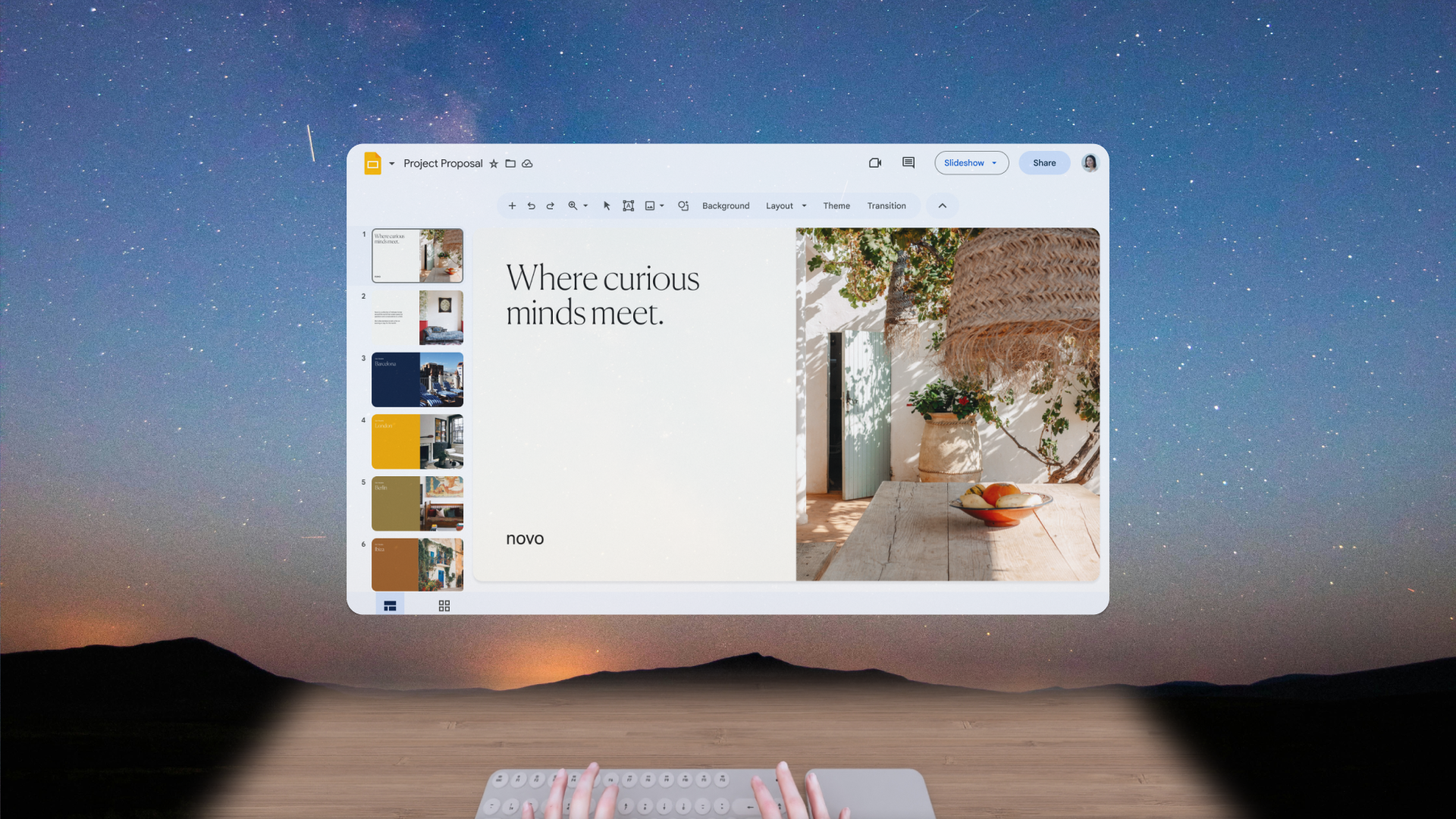
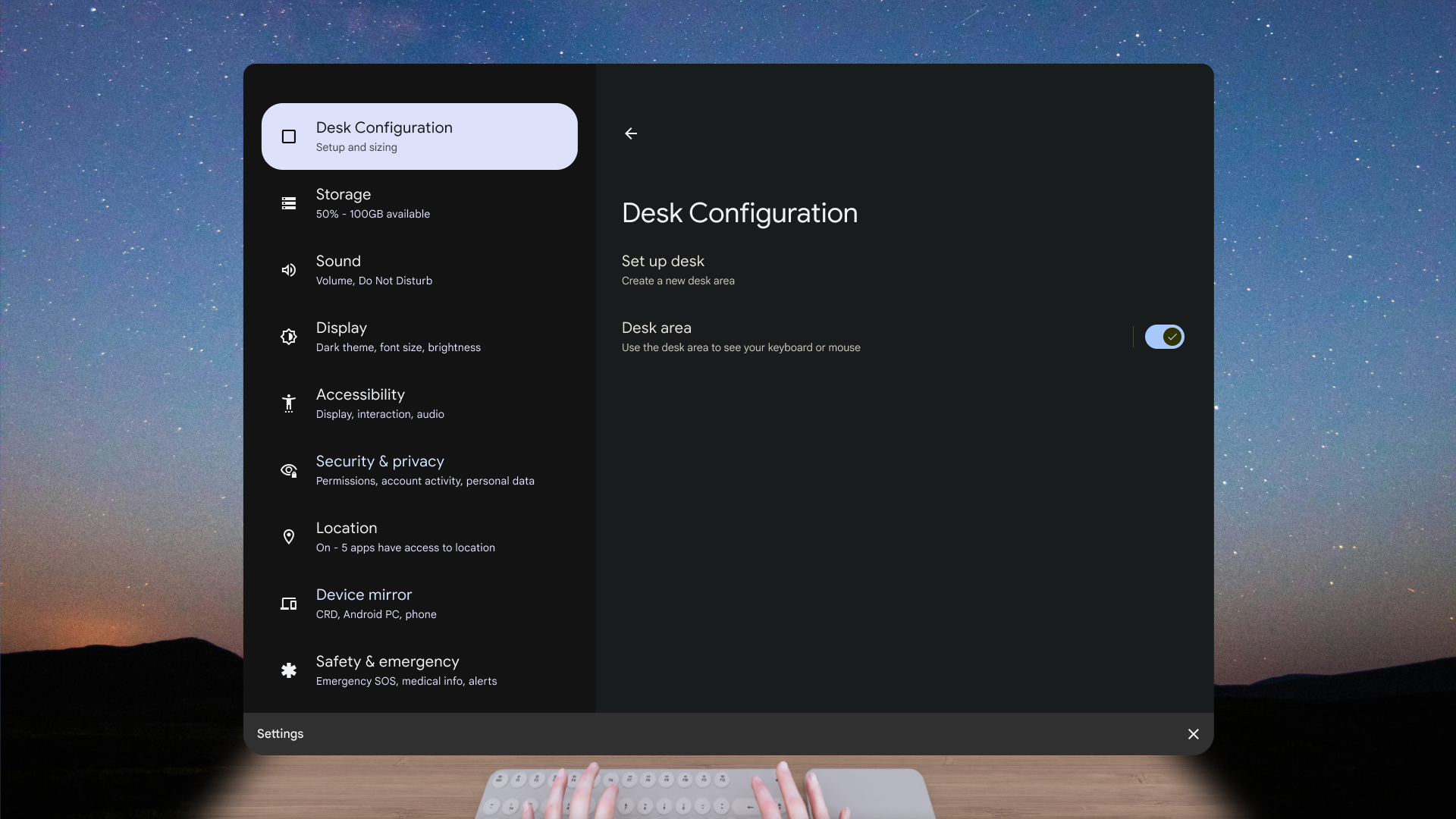
The desk area is a world-anchored passthrough cutout — a rectangular region in front of the user where the virtual environment is replaced with a real-time view of their physical desk. It solves the most practical productivity problem in XR: how to use a physical keyboard, mouse, or notebook without removing the headset.
The cutout has a fixed size, feathered edges to make the boundary feel spatial rather than clipped, and is world-locked to the exact position the user confirmed during initial setup. It persists across app contexts — a system-level surface, not an app feature.
Spatial Positioning Spec
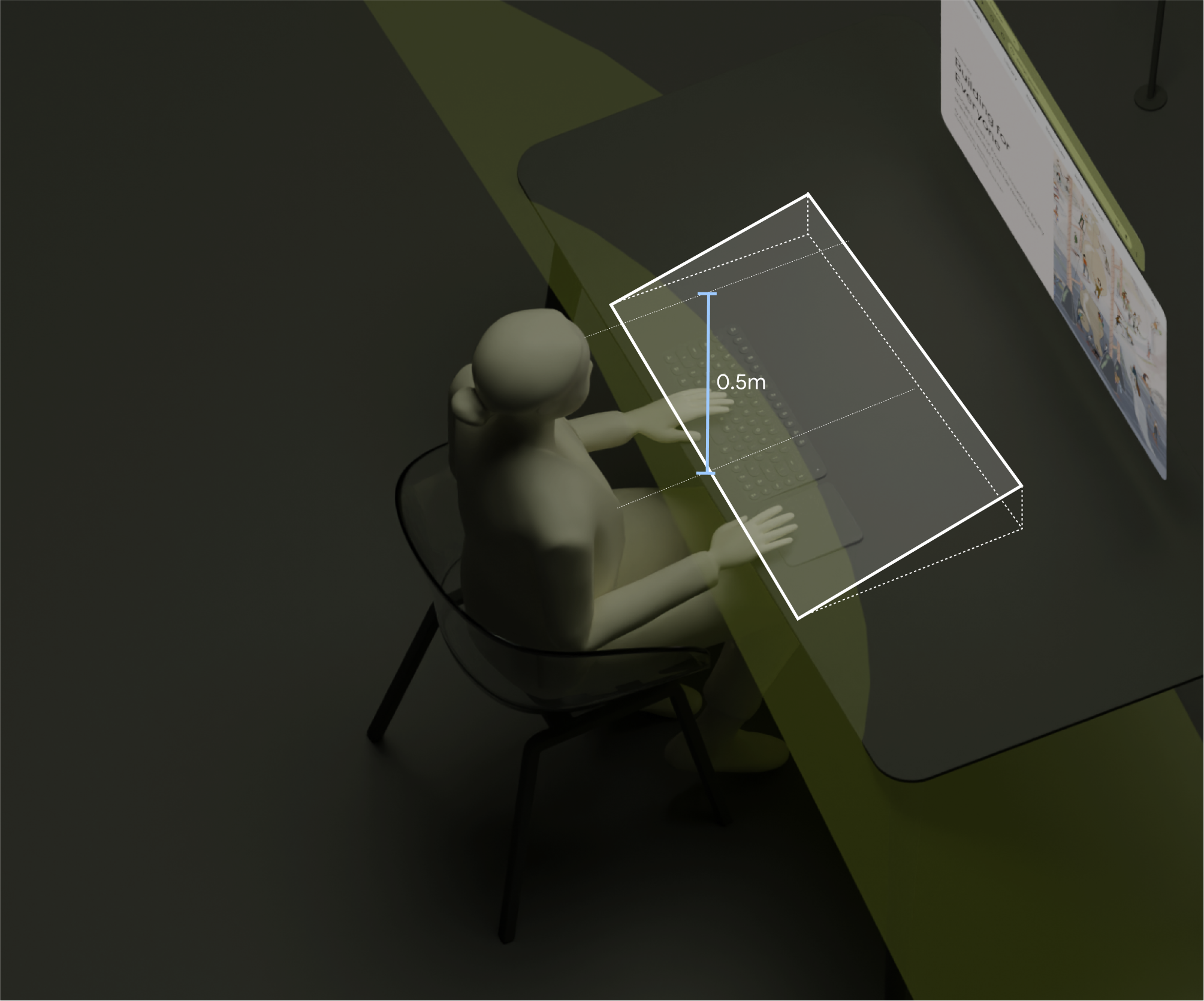
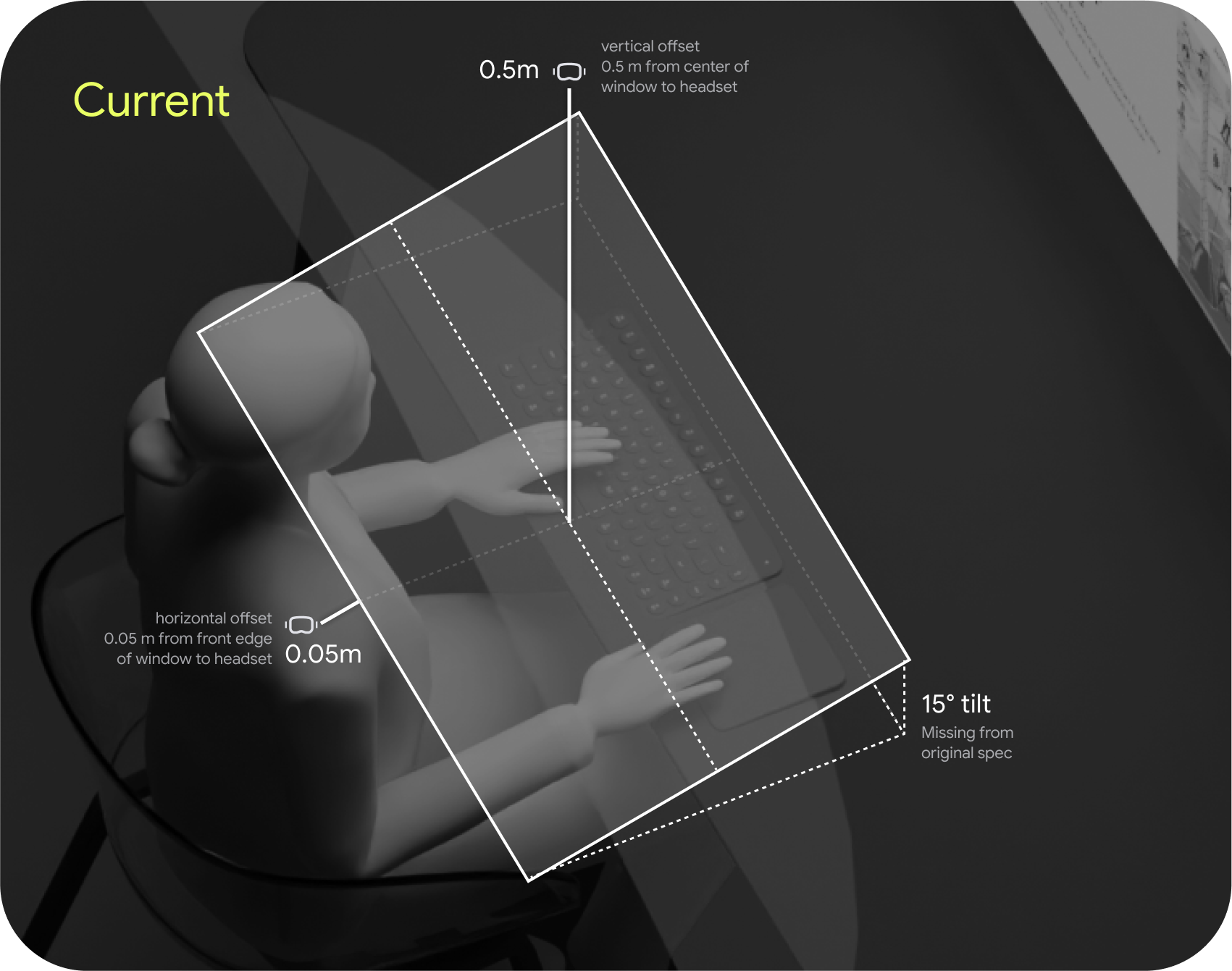
The desk area has a fixed size and is always positioned in front of the user at the moment it's enabled. The slight 15° downward tilt maximizes the viewed area without requiring the user to look straight down.
Passthrough Window
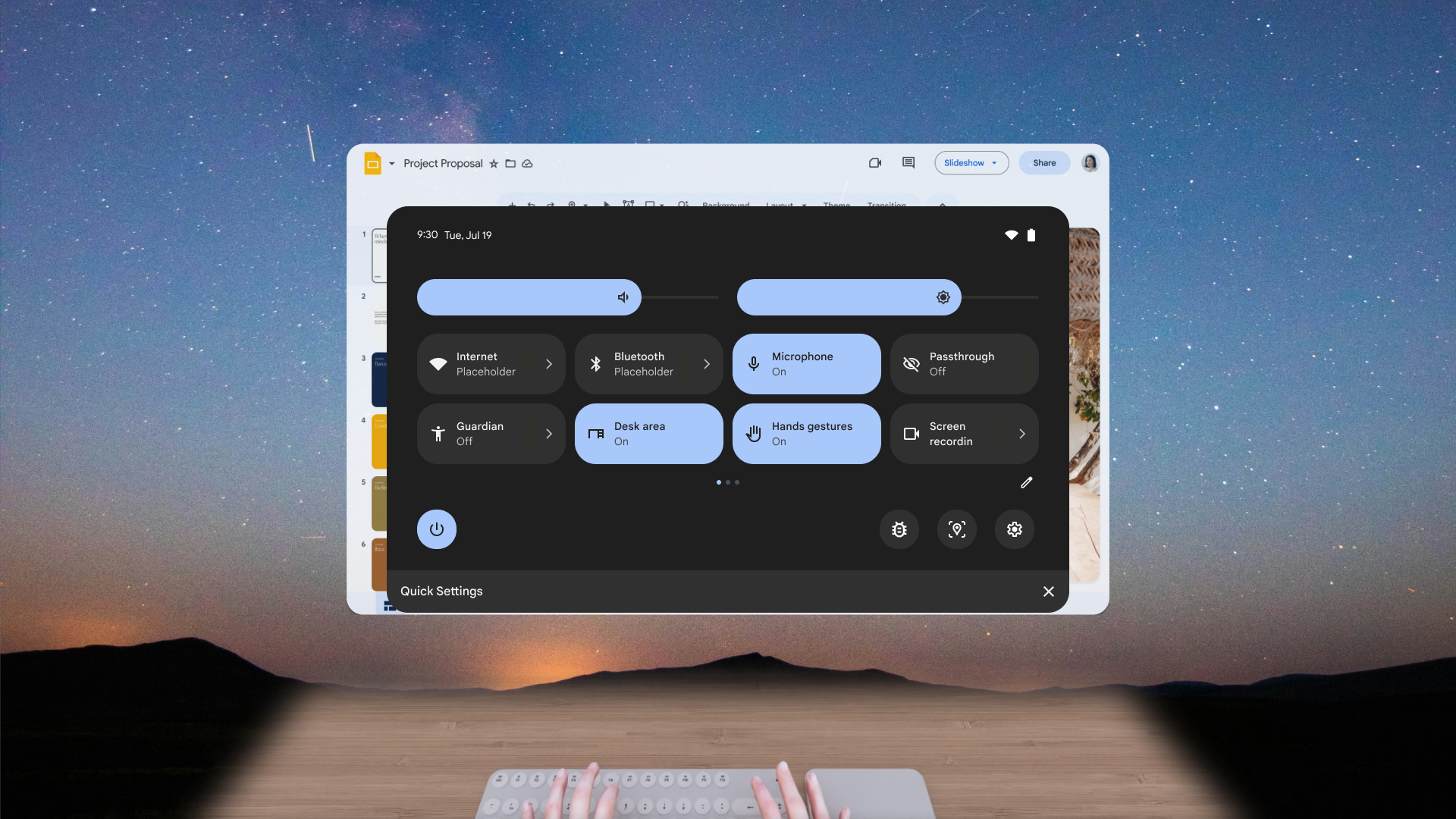
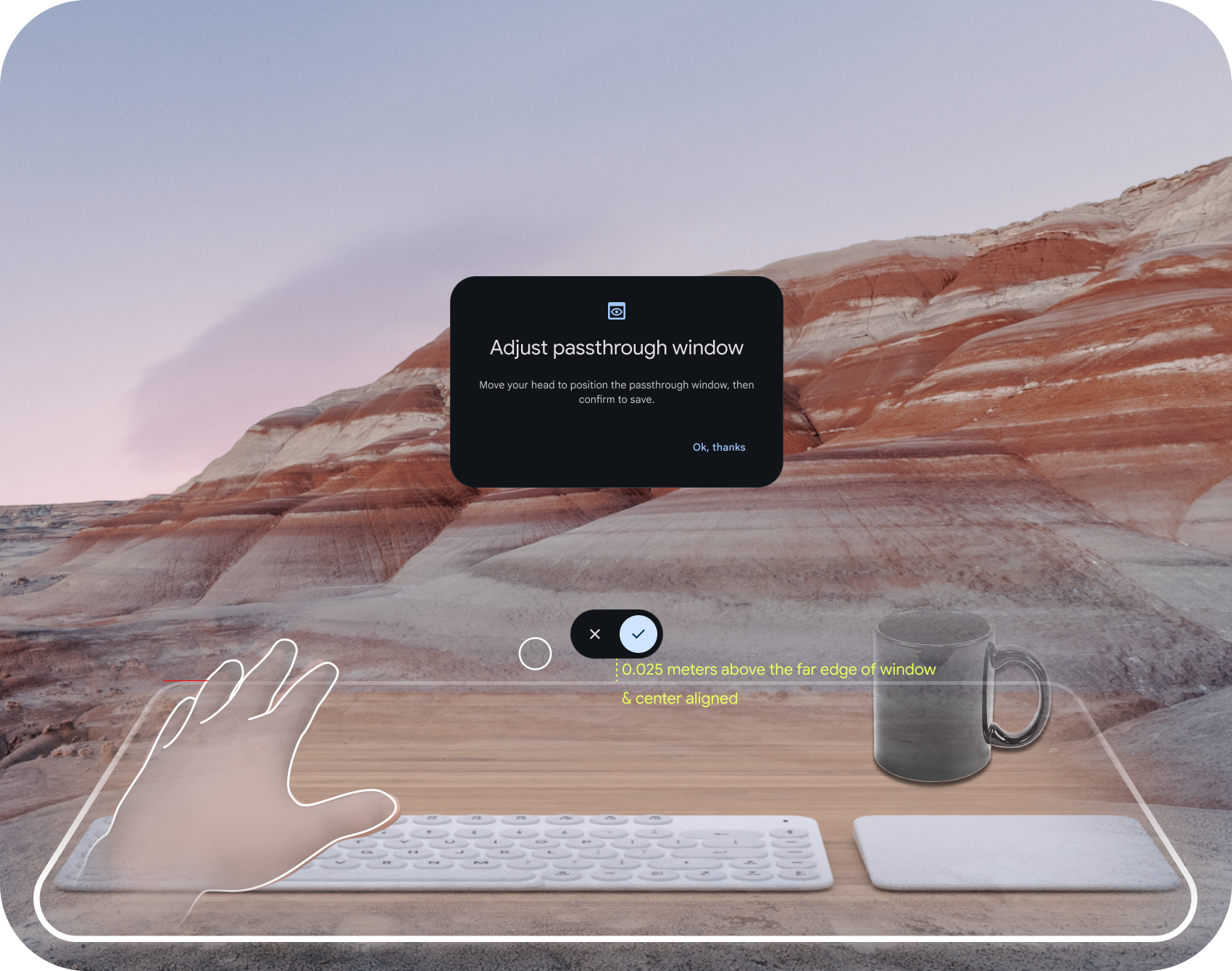
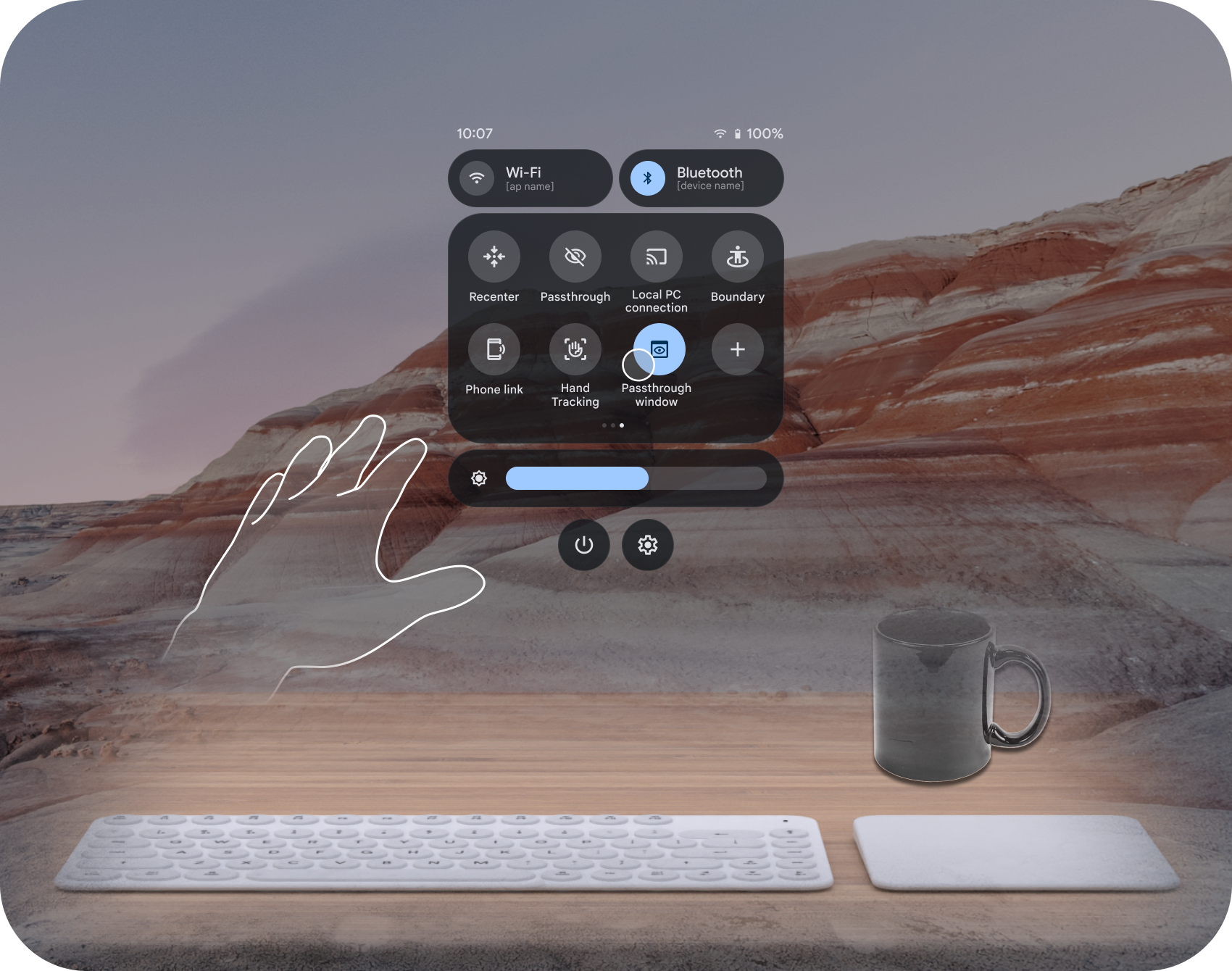
Where the desk area is always-on and anchored to the floor plane, the passthrough window is a user-placed, world-locked portal of any size. Enabled from Quick Settings, it appears head-locked in front of the user with a stroke indicating placement mode — once confirmed, it anchors to the world at that exact position. It is the user's own window into the physical world from within VR.
Proposed: Desk-Aligned Repositioning
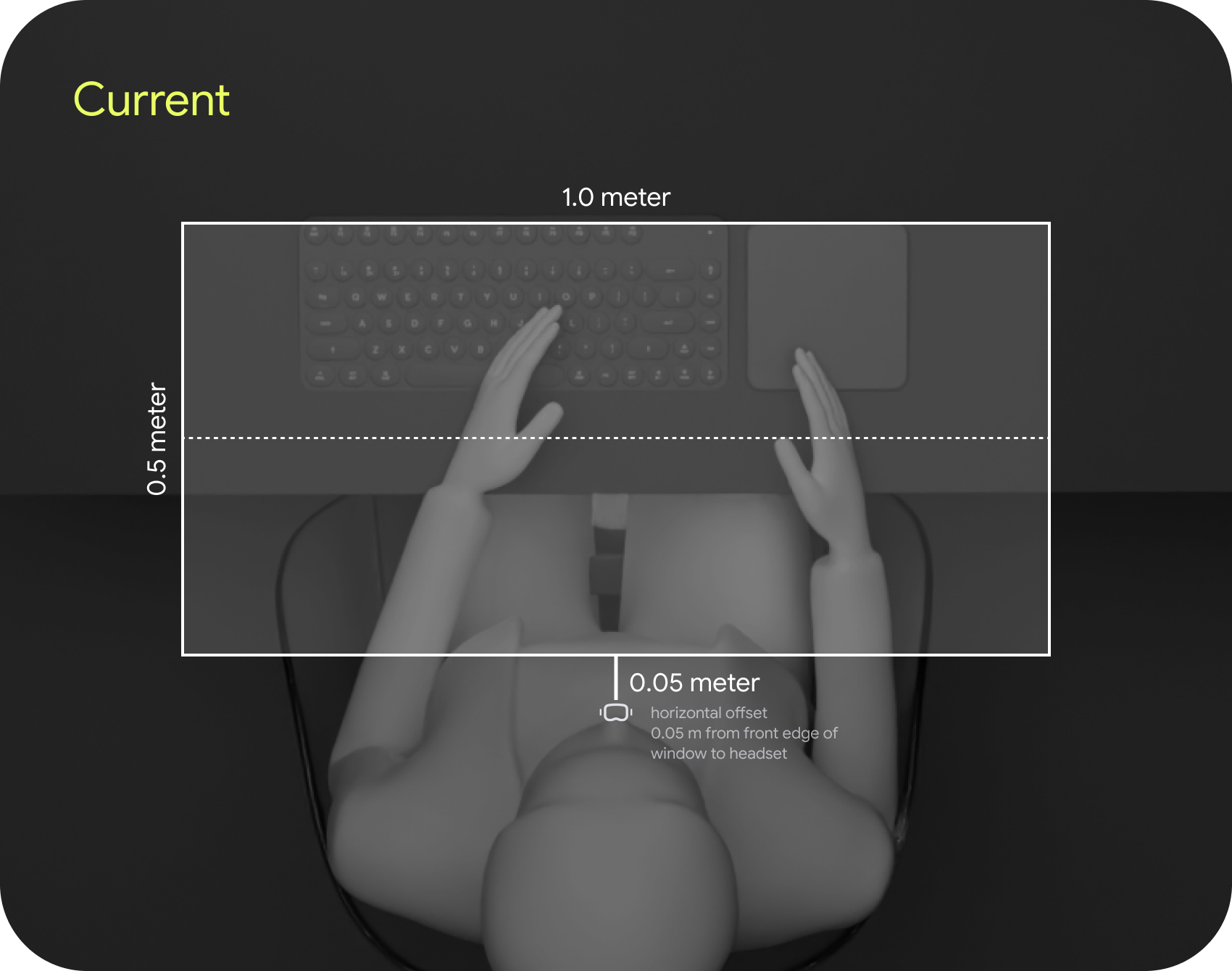
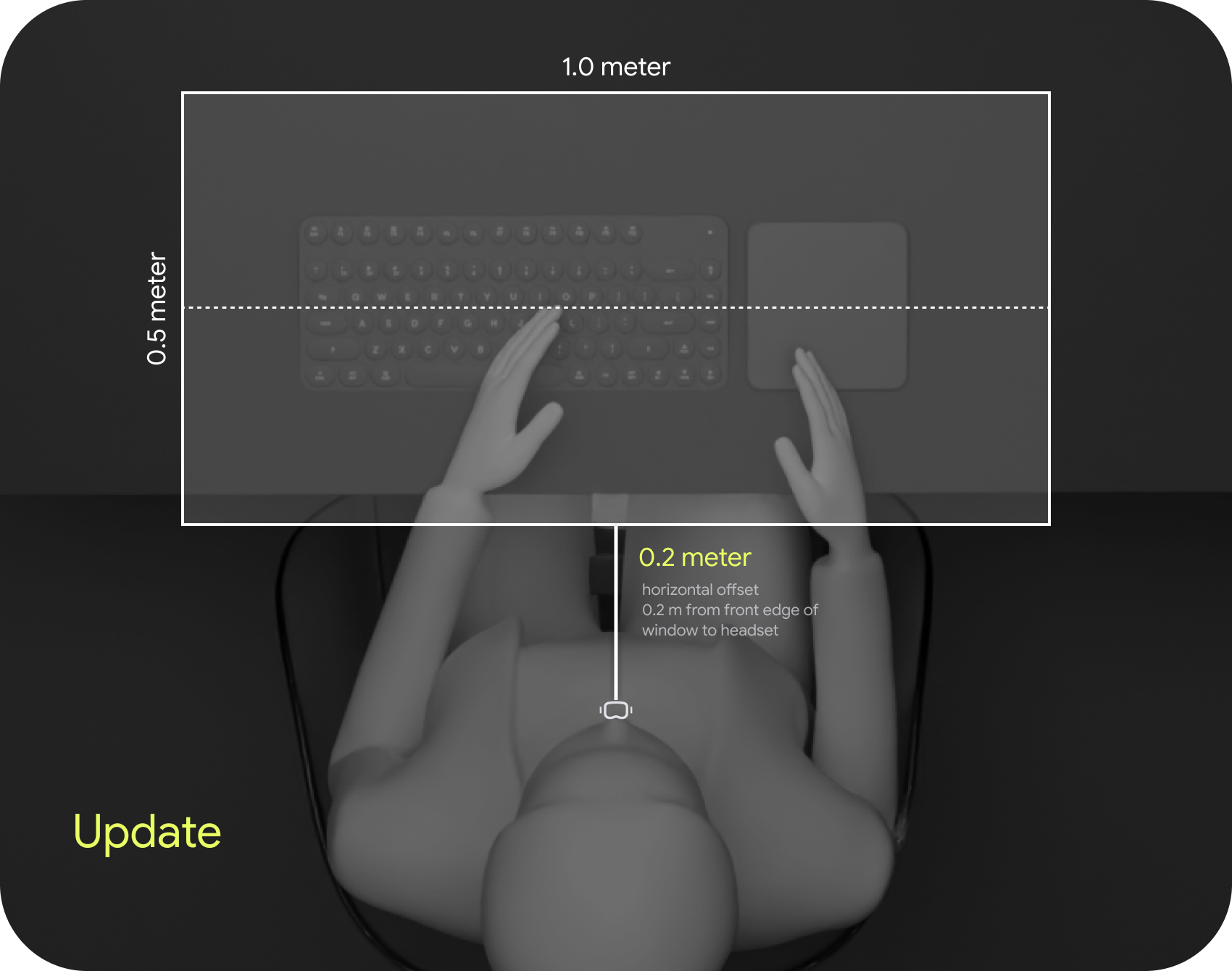
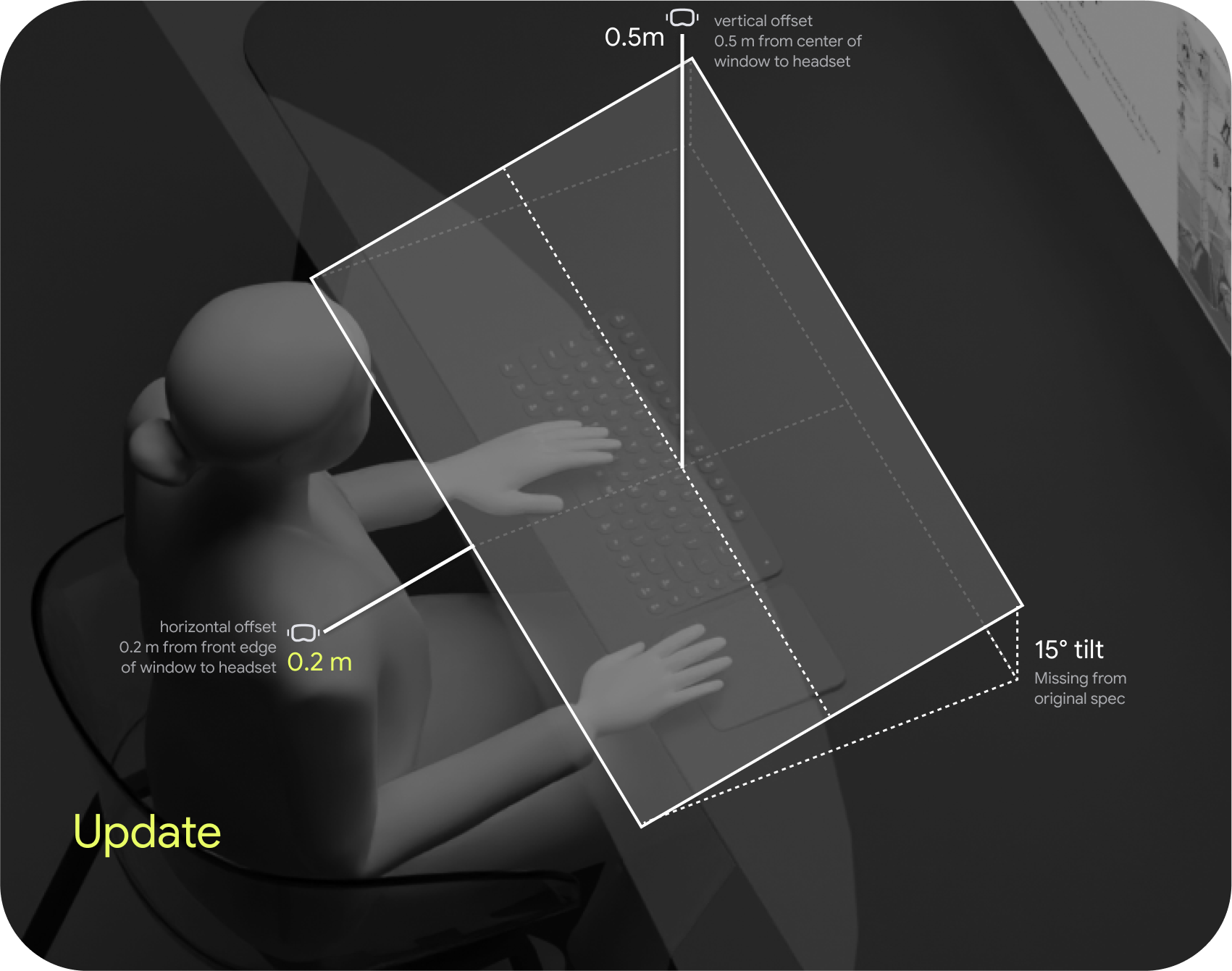
A proposal to reposition the window so that it aligns more naturally with the physical desk surface — matching the desk area's ergonomic angle and depth rather than centering in the user's forward FOV. This shifts the window 0.2 m forward (vs. the default 0.05 m) and adjusts the tilt to match the desk plane, reducing head angle required to use both simultaneously.
Design Principles
These principles distill the core behavioral commitments across the entire world sensing system — from initial guardian setup through desk productivity to full passthrough window placement. They're the contract that every interaction in this system must keep.
01
Safety is a system, not a prompt
The guardian doesn't ask users to understand it — it works automatically. Room scanning runs in the background. Floor detection times out gracefully. The system carries the cognitive burden so the user can focus on their experience.
02
Passthrough, not confinement
Boundaries are not cages. When users approach the edge, they see their real room — not a mesh that emphasizes restriction. The transition is physical reality reasserting itself, not a punishment for moving too far.
03
Continuity across the boundary
Stepping out of the boundary pauses the VR context — it doesn't destroy it. Every panel, every app, every spatial position is preserved. The user returns to exactly what they left, without re-launching or re-orienting.
04
The physical world is always accessible
Desk setup and passthrough windows are persistent, system-level features — not app permissions. A user can always reach their physical keyboard, monitor, or notebook without removing the headset, regardless of which app is active.
05
Spatial memory is honored
When a user returns to a known location, the system recognizes it and skips the full setup flow. Guardian configuration, boundary size, desk area position, and passthrough window placement persist across sessions.
06
Feather over hard edges
Every boundary between virtual and physical uses a spatial gradient — feathered desk cutout edges, opacity-based boundary zone, radial environment transitions. Hard cuts create visual shock; gradients create spatial coherence.
Outcomes
Shipped
Guardian setup UX, desk area, and passthrough window shipped at Samsung Galaxy XR launch. Design decisions in this work directly shaped the production implementation.
Patent
World sensing interaction work contributed to patent filings for spatial boundary detection and passthrough transition methods. Filed 2025.
WO2025048572A1 ↗
System Foundation
The three-flow guardian model, the boundary size binary, and the desk area feather specification became the reference architecture for world sensing across the One UI VST platform.